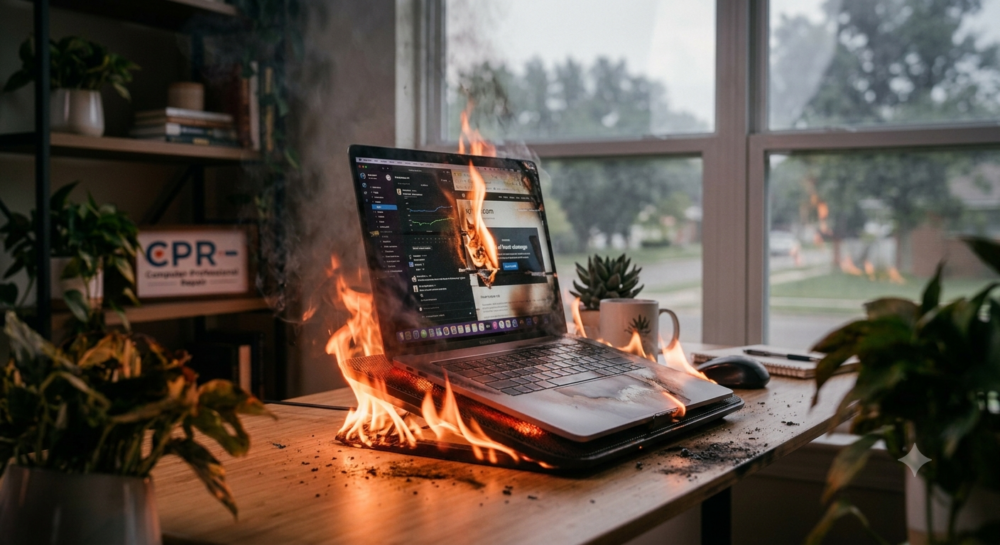
We’ve all been there: you’re deep into a project, streaming your favorite show, or in the middle of a crucial task when suddenly your computer’s fans start sounding like a jet engine taking off. Soon after, everything slows down to a crawl—or worse, your screen goes completely black.
In the tech world, heat is public enemy number one. Computers generate a massive amount of thermal energy just by doing their jobs, and when that heat has nowhere to go, performance and hardware suffer. At CPR (Computer Professional Repair) here in Lubbock, overheated devices are one of the most common issues our technicians diagnose.
Understanding why your computer gets hot, what happens when it does, and how to prevent it can save you from costly data loss and unnecessary hardware replacement.
The Warning Signs of an Overheating PC or Laptop
Computers rarely fail from heat without giving off a few warning signs first. Keep an eye (and an ear) out for these red flags:
-
Constant High Fan Speeds: If your internal fans are spinning at maximum speed immediately after boot-up or during light tasks, your system is struggling to stay cool.
-
Sluggish Performance & Freezing: To protect itself from cooking its own circuits, your processor will intentionally slow down to reduce heat production—a process known as thermal throttling.
-
Sudden Shutdowns or Blue Screens: If your computer abruptly turns off without warning, it has likely hit its maximum safe temperature limit and shut down to prevent permanent hardware damage.
-
A Hot Chassis: If the bottom of your laptop or the back panel of your desktop feels uncomfortable or burning to the touch, internal temperatures are dangerously high.
What Happens Behind the Screens?
Your computer relies on two core processing units: the CPU (Central Processing Unit) and, in many systems, a dedicated GPU (Graphics Processing Unit). These chips pass billions of electrical currents every second. That electrical resistance creates intense heat.
To combat this, manufacturers install heavy metal heatsinks and high-speed fans to draw the thermal energy away from the delicate silicon chips and push it out of the case. When that airflow is restricted, internal temperatures skyrocket. Prolonged exposure to extreme heat can permanently degrade your processor, melt delicate soldered connections, and significantly shorten the lifespan of your storage drives and motherboard components.
How to Keep Your Computer Running Cool
Fortunately, keeping your system at a safe temperature doesn’t require a degree in engineering. A few simple habits can make a massive difference:
1. Mind Your Placement
Airflow is everything. If you are using a laptop, avoid setting it directly on plush surfaces like blankets, beds, or rugs, which instantly block the intake vents underneath. Instead, utilize a flat, hard surface like a desk or a dedicated laptop riser. For desktop users, avoid shoving your PC tower into a tight, enclosed cabinet or directly onto a thick carpet where dust sits heavily.
2. Clear Out the Dust Bunnies
Over time, your computer’s fans act like miniature vacuum cleaners, pulling in ambient dust, pet hair, and lint. This debris forms a thick blanket over internal heatsinks, completely insulating the hardware and trapping heat inside. Regularly cleaning out your vents with a can of compressed air can do wonders.
3. Keep Software Under Control
Sometimes the heat source is purely digital. Demanding background programs, outdated software drivers, or hidden malware can force your CPU to work at 100% capacity continuously. Keep your operating system updated and audit your task manager occasionally to close resource-heavy programs you aren’t using.
When to Seek Professional Support
If you’ve cleared the dust away and your computer is still running hot or shutting down, the problem may be deeper under the hood.
Over time, the factory-applied thermal paste—the conductive compound that sits between your processor and the cooling fan—dries out, cracks, and loses its ability to transfer heat effectively. When this happens, the compound must be carefully cleaned off and reapplied. In other cases, internal cooling fans can experience mechanical failure and stop spinning entirely.
If your computer is throwing heat warnings or slowing down your daily workflow, don’t wait for a permanent hardware failure. Bring your desktop or laptop by CPR – Computer Professional Repair at 5212 82nd Street in Lubbock. Our experienced technicians can clear out deep-seated debris, reapply premium thermal paste, or replace failing hardware to ensure your system stays cool, quiet, and fast.